FloShot for macOS

FloShot

Capture what you see. Make the point clear.

A lightweight menu bar app for screenshots, scrolling capture, screen recording, and annotation—with pinning, OCR, and translation built in. Capture the screen, explain the point, and finish the whole workflow in one place.

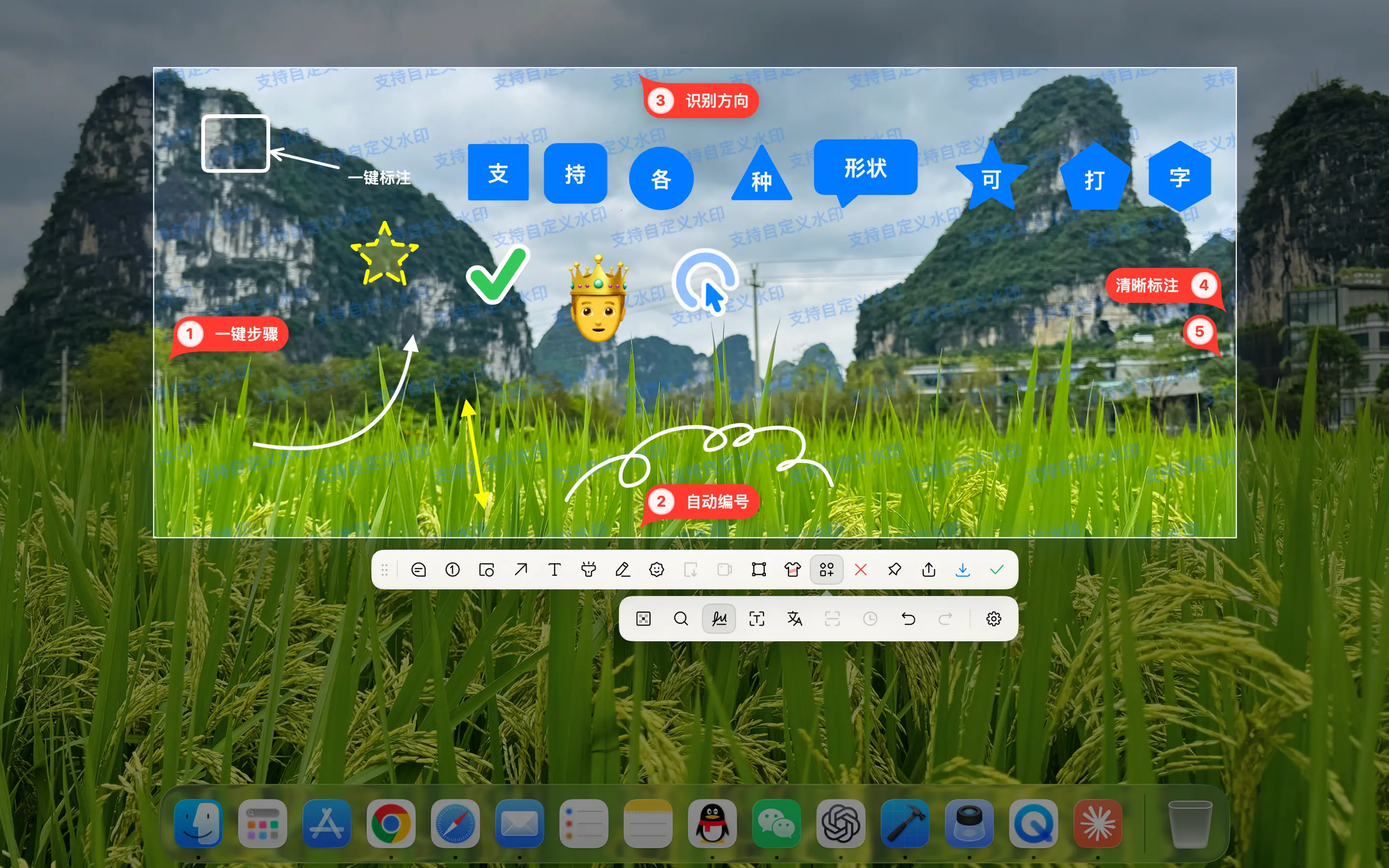
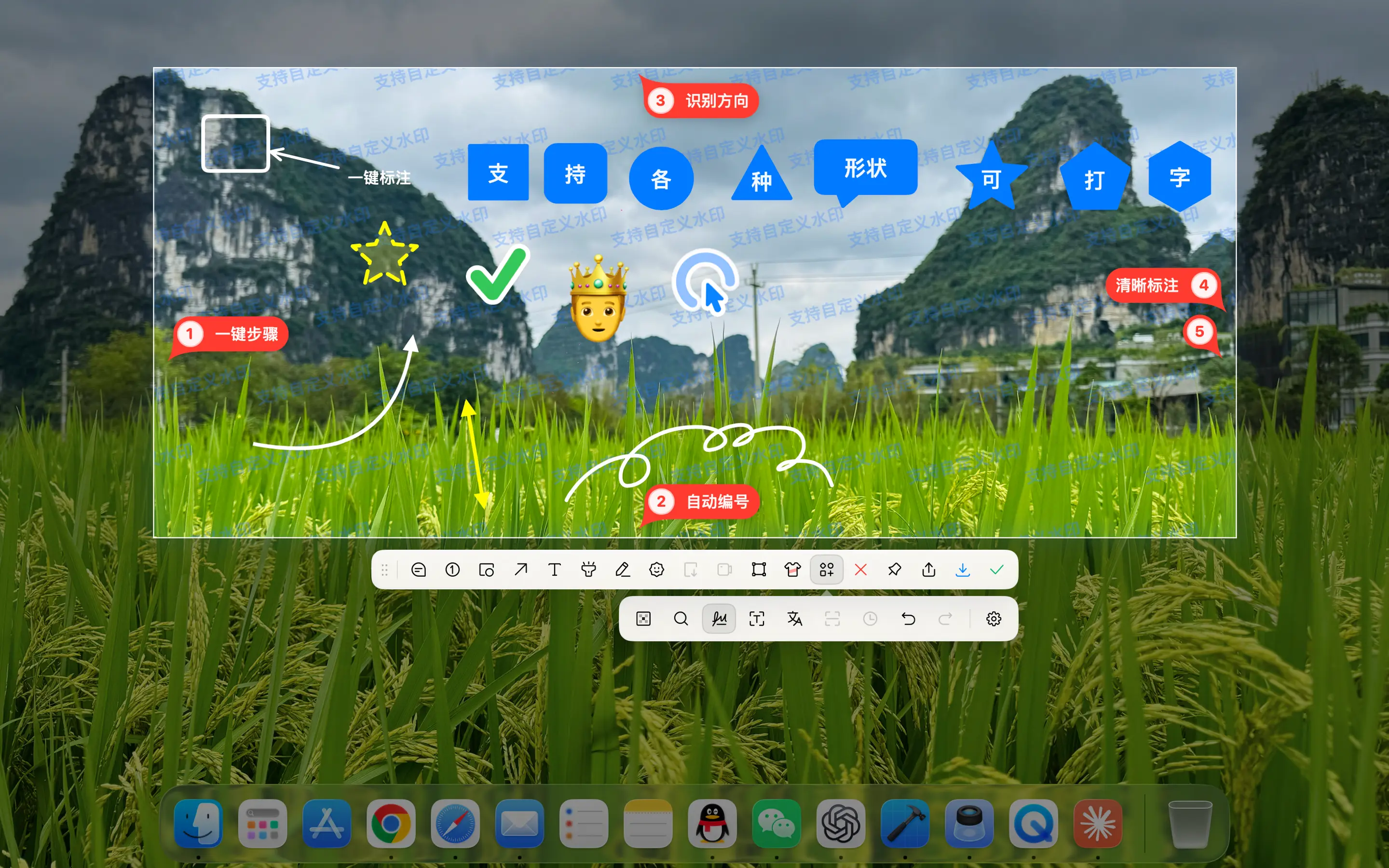
FloShot Use arrows, text, serial numbers, mosaics and highlights to annotate screenshots
FloShot · Mac App
Capture, Explain, Keep

From capture to explanation, one complete screen workflow.

No need to change tools after taking a screenshot: continue scrolling to capture, record the screen, mark highlights, or pin reference content to your desktop. Every step is centered around the same goal—stay faster and speak more clearly.

01
Screenshot & Scrolling Capture

If you can’t fit one screenshot, I’ll take the entire content with you.

With intelligent recognition of windows, you can also select areas freely; when encountering chat records, web pages or long documents, you can turn on scrolling long screenshots to stitch them together while scrolling. After completion, you can directly copy, save, or enter annotation to continue processing without having to switch back and forth between multiple applications.
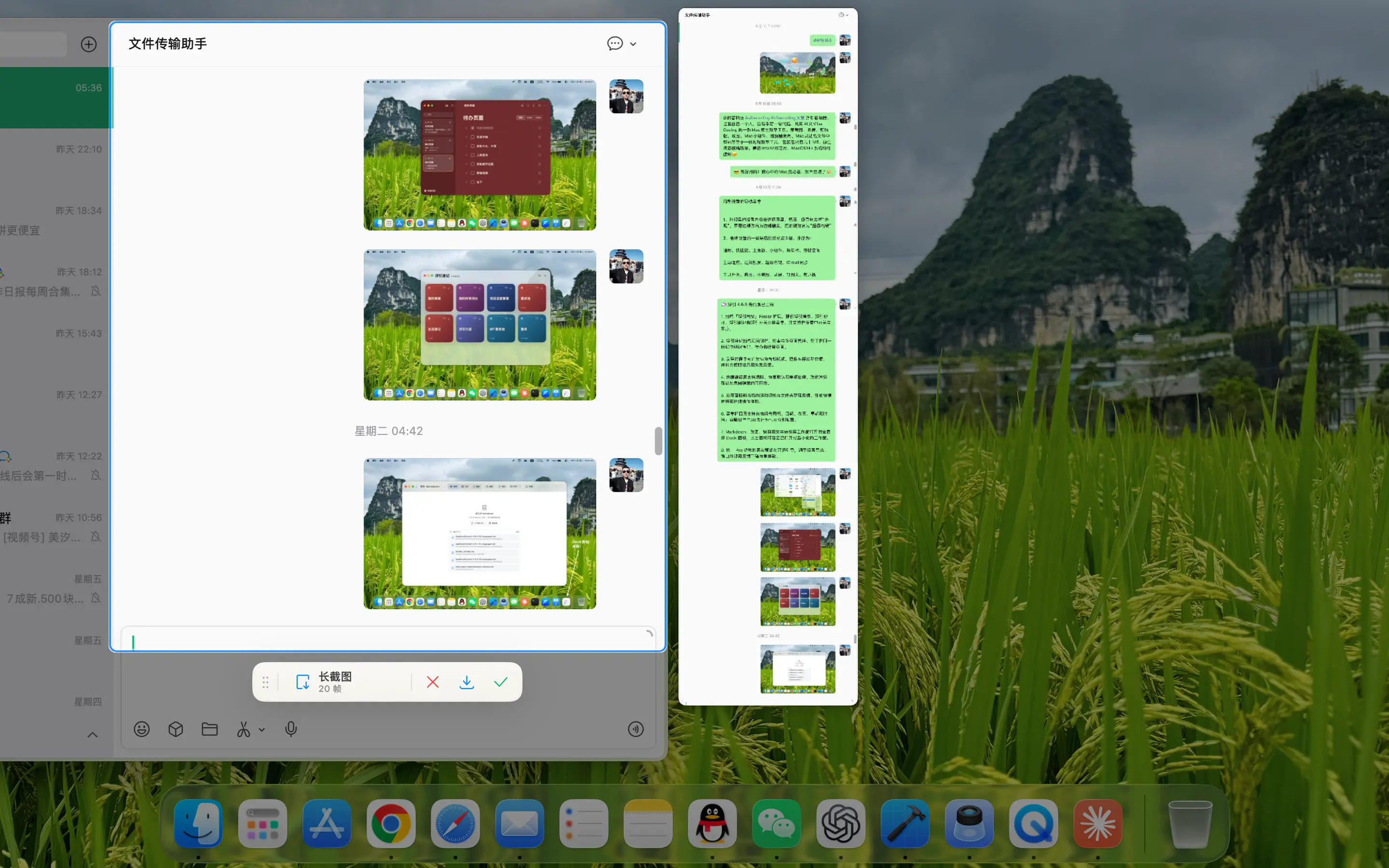
FloShot Capture scrolling content and stitch long screenshots in real time
How much you scroll, how much you capture. Collect long pages, chat history and documents in one go.
02
Annotation & Library

Annotation is not about making a few strokes, but making the key points clear.

Arrows, lines, shapes, numbers, text, brushes, highlights, mosaics and cropping are all in the same toolbar. Coupled with the Emoji, sticker and annotation database, you can store commonly used materials and use them directly when explaining a problem next time.

Full screenshot of FloShot annotation toolbar
From circling questions to writing clear explanations, common annotations are all completed in one edit.
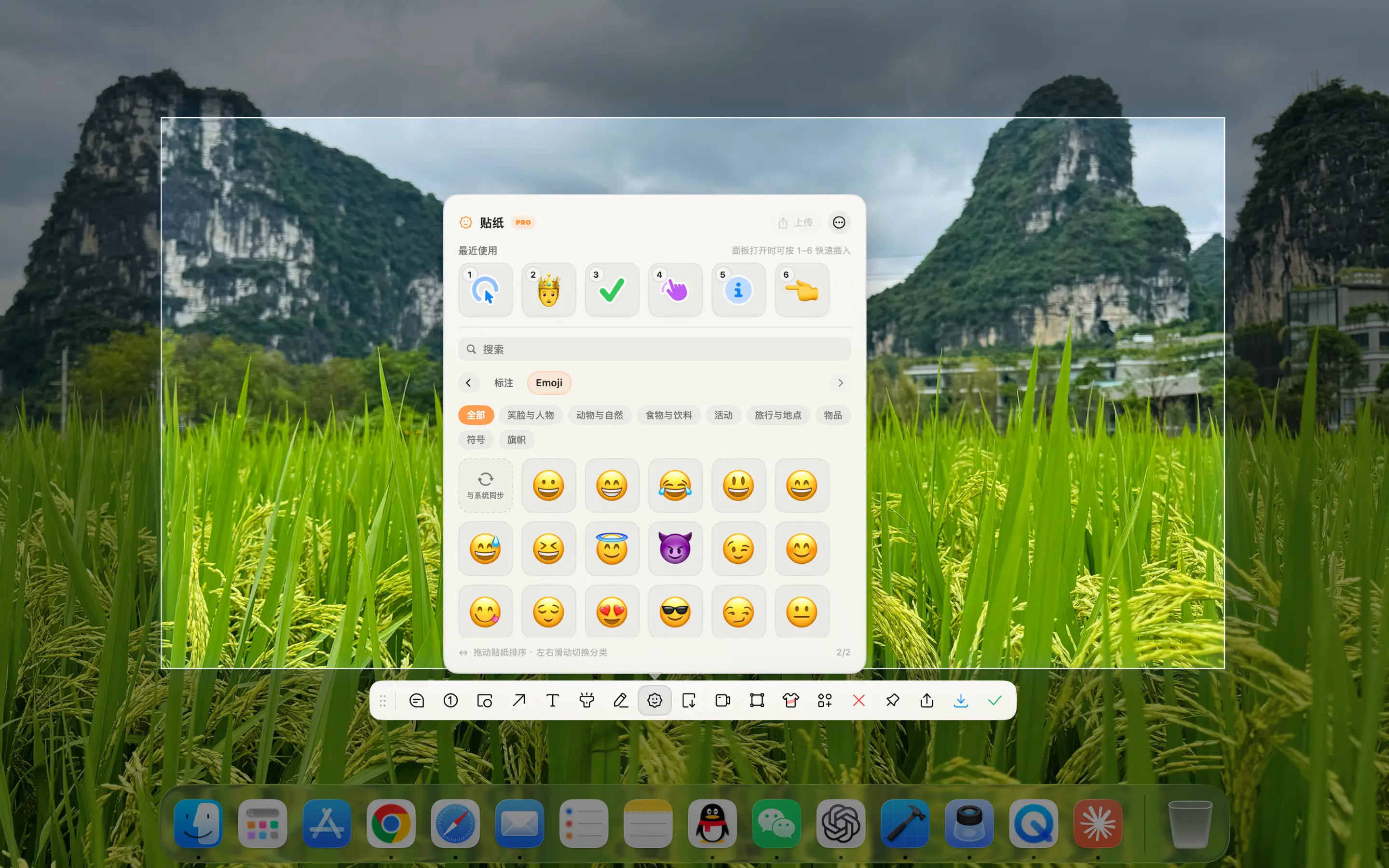
Emoji and Sticker Panel for FloShot
Stickers and Emoji Add emotion, pointing, and visual cues to screenshots to make explanations more intuitive.
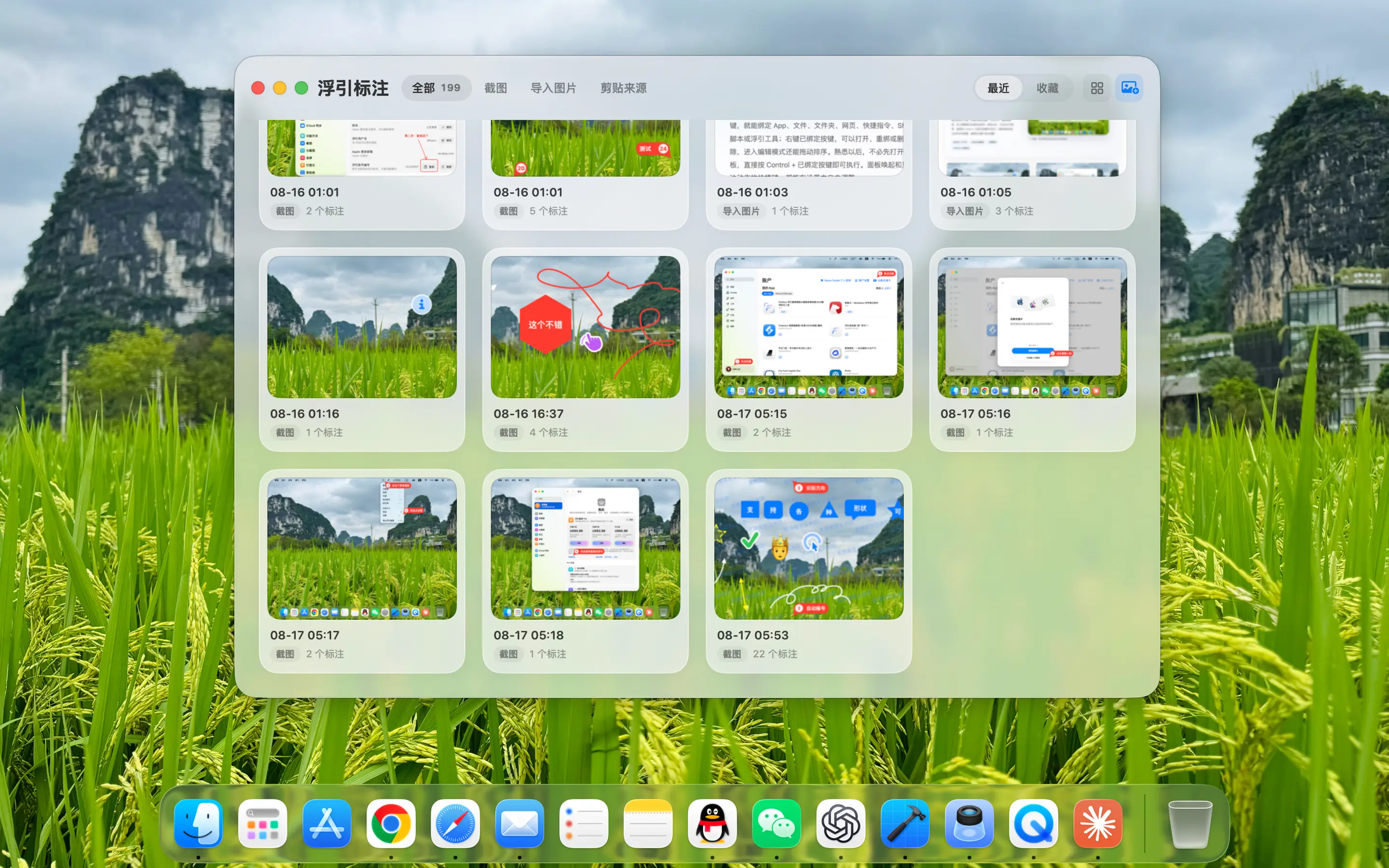
FloShot Annotation database
Centralized management of commonly used materials Save frequently reused annotation materials and directly drag them into the current screenshot when needed.
03
Screen Recording

Record your screen and bring your voice and yourself into the picture.

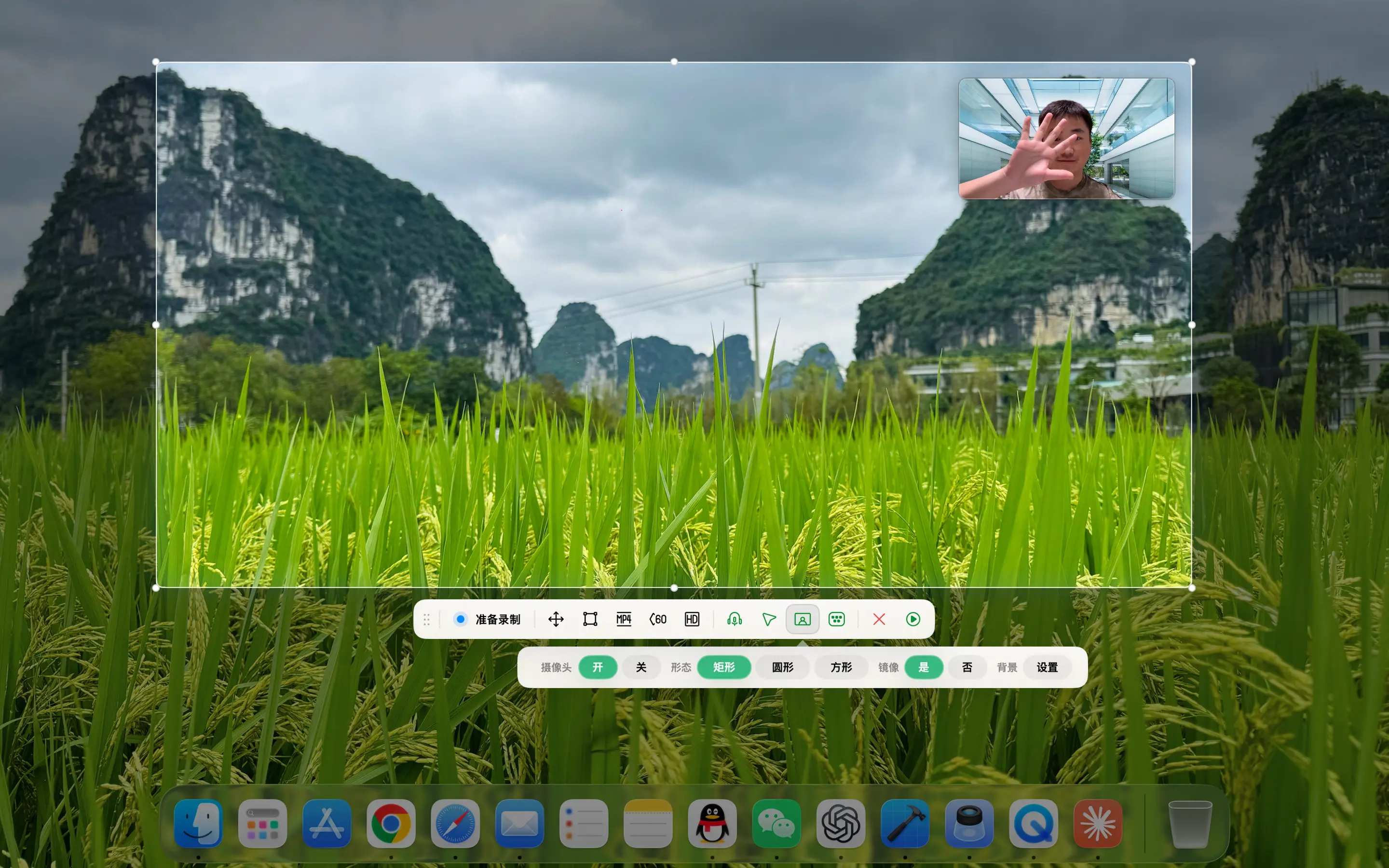
Select full screen or specified area to start recording, and set the image quality, frame rate and save location according to the scene. When demonstrations, courses or feedback require real people, camera footage can be added; system sounds and microphones can also be combined as needed.

FloShot Record the selected screen and turn on the camera and audio settings
Picture, sound and camera are configured at once, suitable for demonstrations, tutorials and problem feedback.
04
Pin & Reuse

Keep the content that needs to be compared in the most convenient place on the desktop.

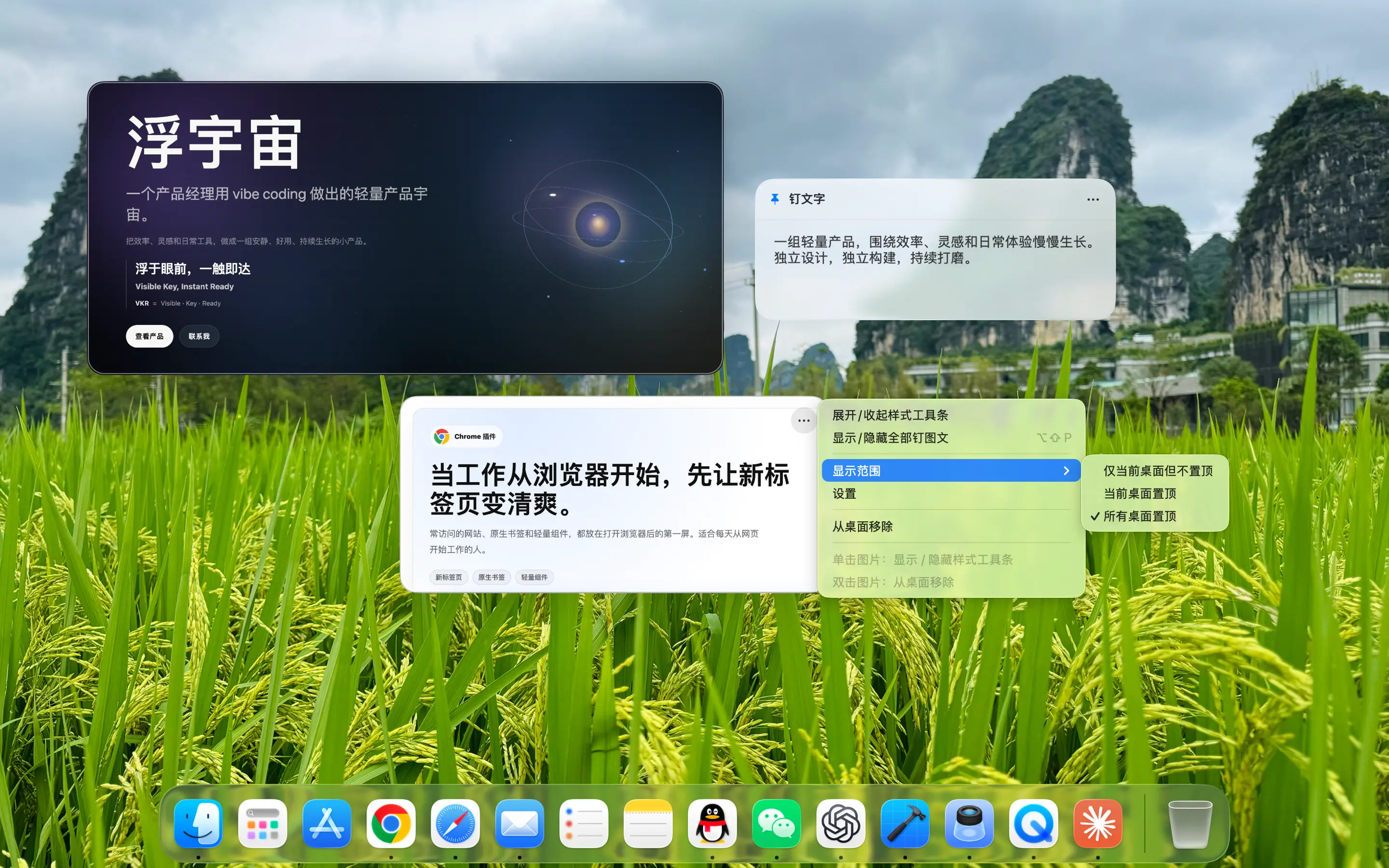
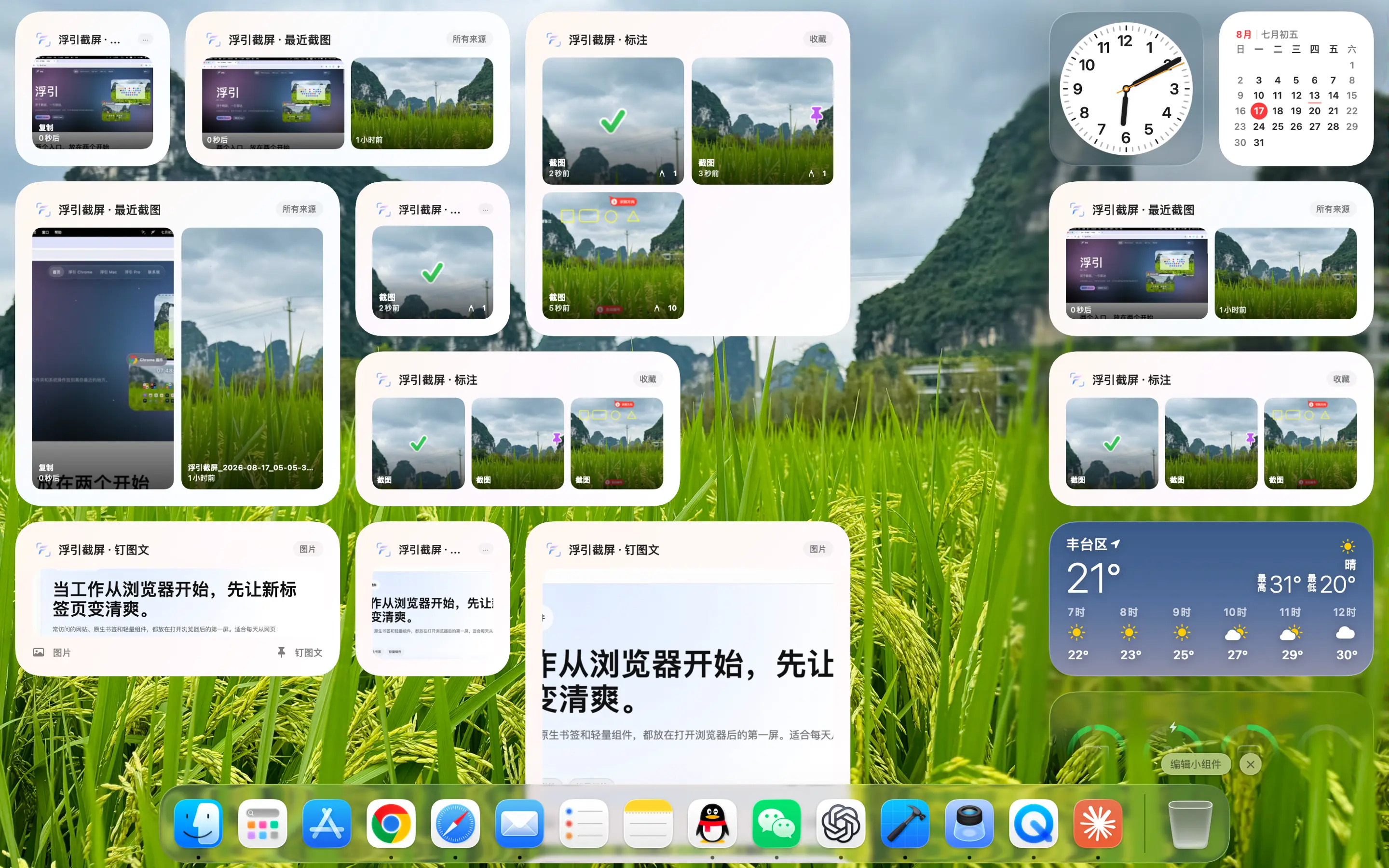
After taking screenshots or copying pictures and text, you can pin the content on your desktop for continuous comparison, and adjust the display range according to the work scenario. Recent screenshots can also be returned to the desktop through native macOS widgets, making it faster to preview, copy or locate the original file.

FloShot Pin pictures to Mac desktop and set display range
Reference pictures, text and temporary information stop right in front of you, and you don’t have to look for them repeatedly when switching windows.
macOS desktop widgets by FloShot
Recent screenshots return to desktop View recent content using native widgets and continue previewing, copying or positioning the original image.
01

Native Mac App

Lightweight resident menu bar that does not occupy Dock space

02

local priority

Screenshots, screen recordings and annotations are all in your control

03

15 languages

The interface follows your language habits

04

a set of workflows

Capture, explain, save and reuse in a natural connection

Available on the Mac App Store

The next time you need to illustrate a screen, start with a quick screenshot.

FloShot is available on the Mac App Store. Click to open its app details directly in the storefront for the current page language.

Will FloShot upload images to the server?

Screenshots, screen recordings and annotations are mainly processed locally, and the content is saved and managed by you. System permissions are only requested when required for the corresponding function.

Why do screenshots require screen recording permission?

macOS classifies screen reading as screen recording permissions. FloShot will guide you to the system settings authorization when using the relevant capabilities for the first time.

What is the relationship between FloShot and FloGravity?

FloShot is a standalone Mac App; the same screenshot workflow is also built into FloGravity, making it easy to use directly from the action panel, shortcuts, and widgets.

Which region does the App Store link open?

The current page language determines the storefront, and links open app details directly. Simplified Chinese uses mainland China, Traditional Chinese uses Taiwan, English uses the US, and other languages use their corresponding regions.

Contact me

Have a question or an idea to share? Message me directly through the WeChat official account.

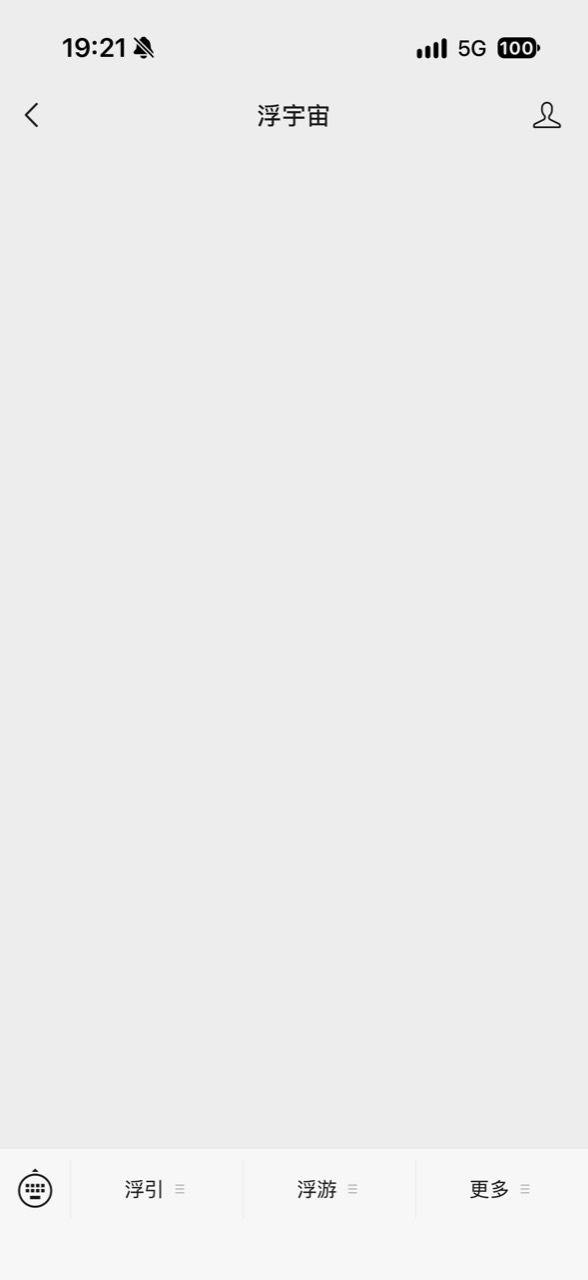
  1. Scan with WeChat and follow

    Scan the QR code, follow 浮宇宙, and open the account.

Tap the bottom-left keyboard icon